




Connect to any system via API, directly from your workflow, with the new Outbound Webhook step


Your workflows shouldn't stop at the edge of your ecosystem
With the new Outbound Webhook step in Intellistack Streamline, you can now connect directly to any external API - right from inside your workflow.
Whether it’s Salesforce, your EHR, a logistics system, or a tool your IT team built 10 years ago, you can send data out, get a real-time response, and keep your process moving.
Send data. Get data. Keep moving.
The Outbound Webhook step is a native workflow action that makes HTTP requests to external systems and captures the response for use downstream. It's synchronous, which means your workflow waits for the API to respond before continuing - so you always have the data you need for the next step.
With Outbound Webhooks, you can:
- Eliminate integration bottlenecks - Connect to proprietary systems, niche tools, and internal APIs without waiting for a custom connector to be built
- Keep workflows moving in real-time - Query external systems mid-workflow to make dynamic decisions (check inventory, validate addresses, retrieve patient data)
- Close the loop automatically - Send data out, capture the response (like a new record ID or calculated value), and use it in the next step
- Handle any file size - Send documents, images, or attachments via base64 JSON (10MB), multipart form data (100MB), or raw binary (2GB)
No brittle integrations. No context switching. Just full control.
Whether you're pushing data out, pulling data in, or doing both in a single call, the Outbound Webhook step handles it.
How it works
1. Set up your authentication once
Before using the Outbound Webhook step, configure your API credentials in the Integrations Marketplace. Intellistack Streamline supports the authentication methods you need:
- Basic Authentication - Authenticate using a username and password
- Bearer Token - Authenticate using a token provided by the external system
- OAuth 2.0 - Authenticate using client credentials and token exchange
- Custom - Create custom header authentication for systems with specialized requirements
- No Authentication - For public endpoints or APIs secured at the network level
Credentials are stored securely using the same encrypted credential management that powers all Intellistack Streamline integrations.
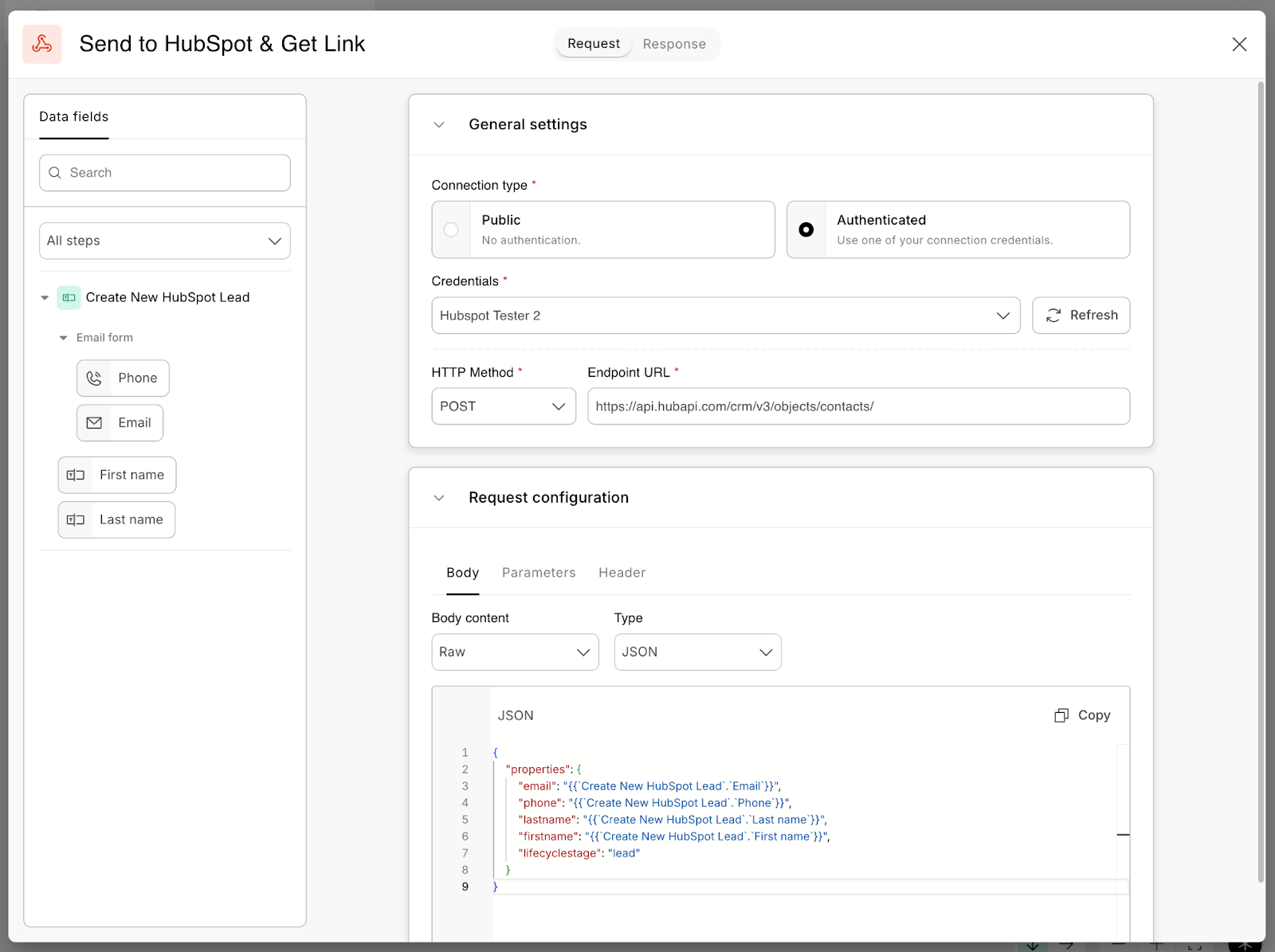
2. Configure your request in the workflow builder
When you add an Outbound Webhook step to your workflow, you'll configure:
- Endpoint URL - The API you're calling, with support for dynamic path parameters
- HTTP Method - GET, POST, PUT, or DELETE
- Headers - Custom key-value pairs for any headers your API requires
- Query Parameters - URL parameters passed with the request
- Request Body - Build your payload using the visual data mapper to drag & drop data from your workflow into your custom JSON payload
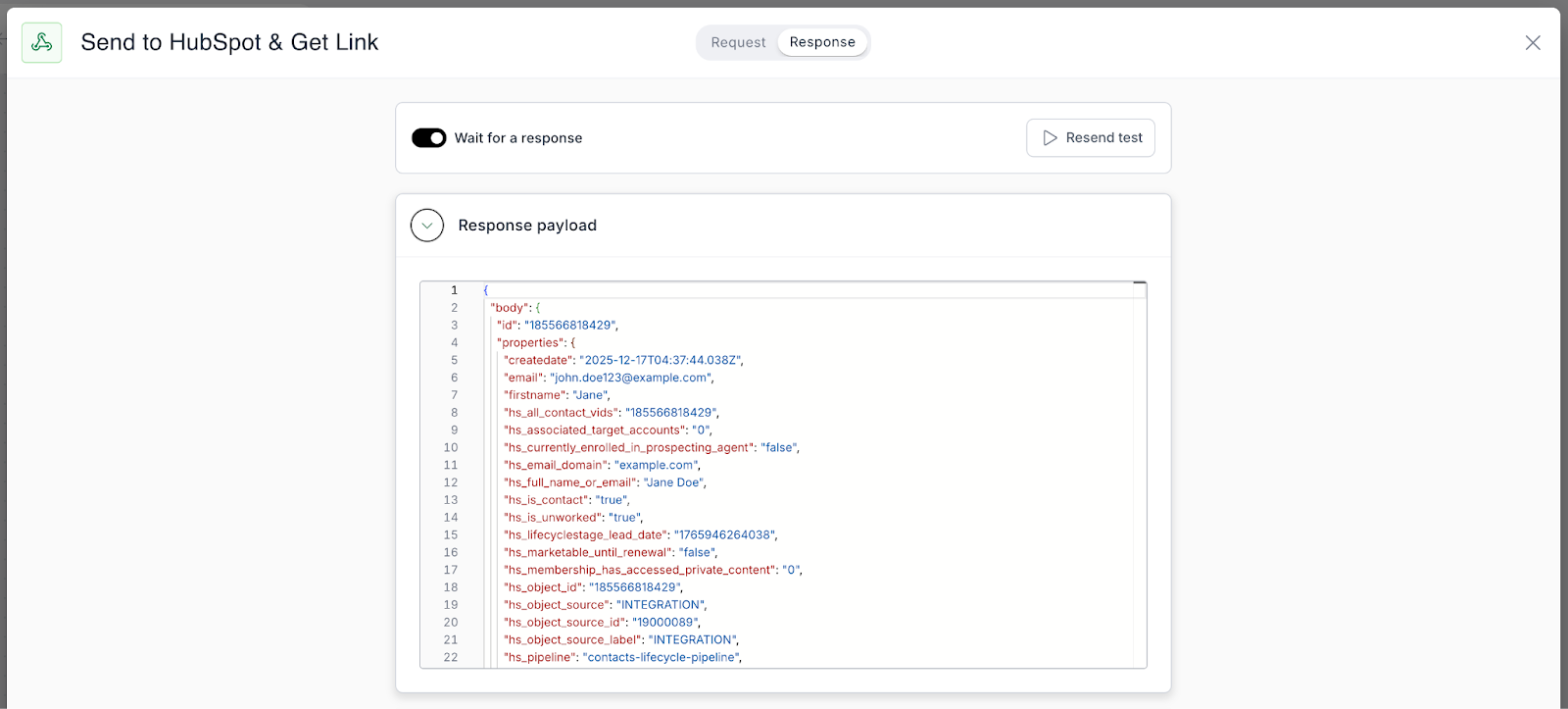
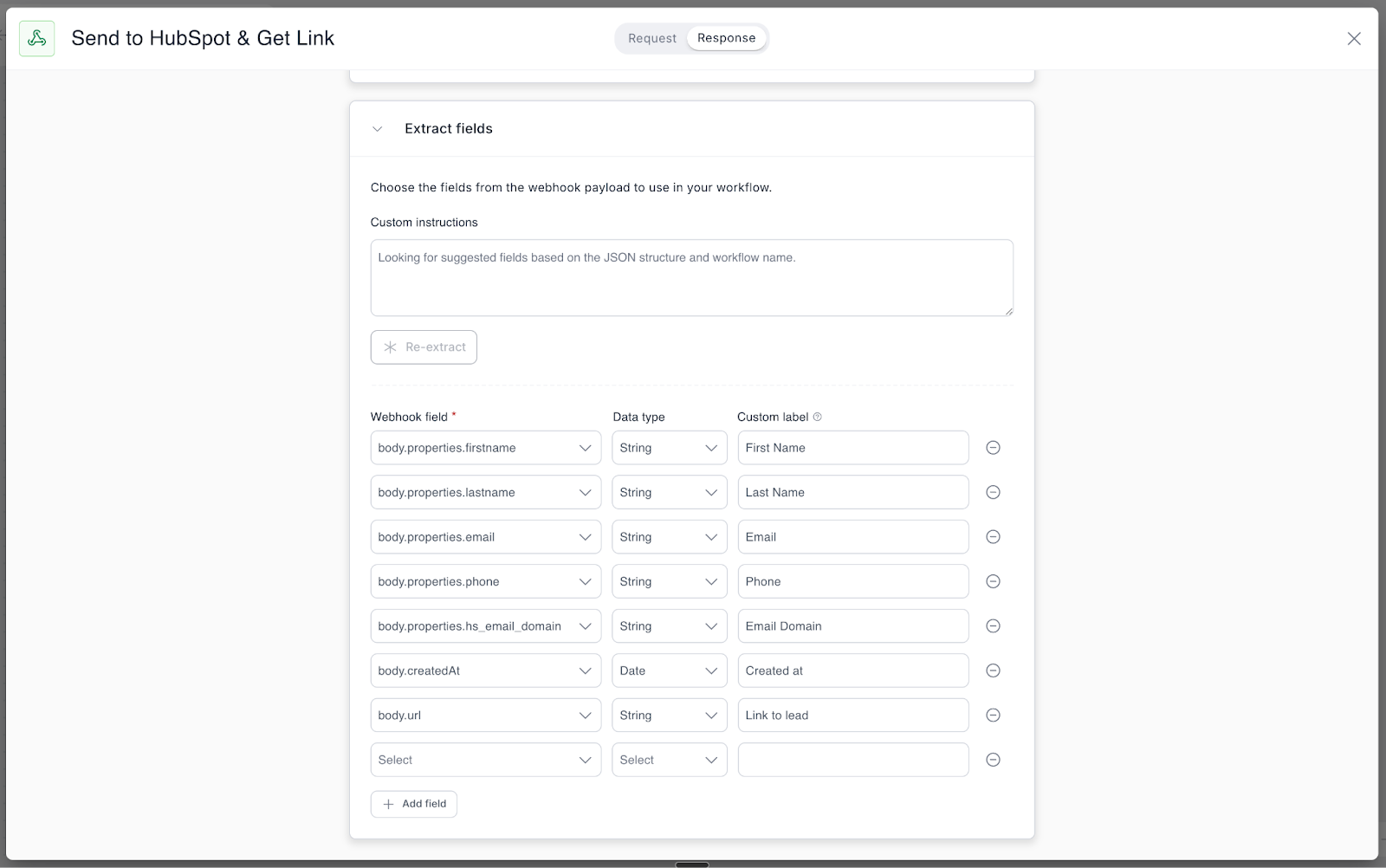
3. Use the response in downstream steps
Once the API responds, the response body is captured in your workflow context. You can map any part of that response into subsequent steps, branch your workflow based on the result, or store the data for later use.
Outbound Webhooks in action
If a system has an API, you can now automate it. No engineering queue. No vendor roadmap negotiations. Here's what that looks like:
Healthcare: Pull patient context from your EHR mid-workflow
A hospital's intake workflow needs to check whether a patient has an existing care plan before routing them to the right department. With the Outbound Webhook step, the workflow queries the EHR's API using the patient's MRN, retrieves the care plan status, and routes the intake accordingly - all in a single automated flow. No manual lookup. No switching between systems.
Marketing & Sales: Sync leads with your CRM in real time
When a prospect completes a form, the workflow needs to create or update their record in Salesforce and capture the returned Contact ID for downstream steps. The Outbound Webhook step posts the form data to Salesforce's API, receives the new record ID in the response, and passes it forward - so the next step can immediately associate related activities with the right contact.
Facilities: Automate service requests and ticket creation
When an employee submits a facilities request - new equipment, office supplies, or maintenance - the workflow needs to create a ticket in the facilities management system and return the ticket number. The Outbound Webhook step posts the request details to the facilities API, captures the generated ticket ID in the response, and includes it in the confirmation sent back to the employee. Instant ticket creation, no manual data entry.
Built for flexibility - available to everyone
The Outbound Webhook step is designed to handle the "long tail" of integrations - the proprietary systems, niche tools, and internal APIs that your organization relies on but that may never have a native integration.
A few things to know
- File support: You can send files to external systems in three ways - base64-encoded in JSON (up to 10MB per file), multipart form data (up to 100MB), or raw binary (up to 2GB). For workflows handling documents, images, or attachments, choose the method that fits your file size and API requirements.
- Response handling: The step captures JSON responses and makes them available for mapping. If you're working with APIs that return other formats, you may need to handle parsing in a subsequent step.
- Timeouts and retries: Built-in retry logic handles transient failures. For long-running API operations, consider whether a synchronous call is the right fit or if you need an asynchronous pattern.
Try it today
The Outbound Webhook step is available now to all Intellistack Streamline customers. Open the workflow builder, add the step, and start connecting your workflows to the systems that matter most to your organization.
Ready to give it a try? Build your first outbound webhook today by following the steps above or by visiting our help article.