



Send data anywhere: the new “Deliver Data” step for end-to-end workflows



The new Deliver Data step in Intellistack Streamline lets you send workflow data to any connected system, not just back to its original source. Update records in one system, create new records in another, or sync data across multiple destinations, all within a single automated workflow. No code, no manual handoffs, no juggling foreign keys or data source constraints.
This is what truly end-to-end workflow automation looks like.
What the new Deliver Data step does for your data
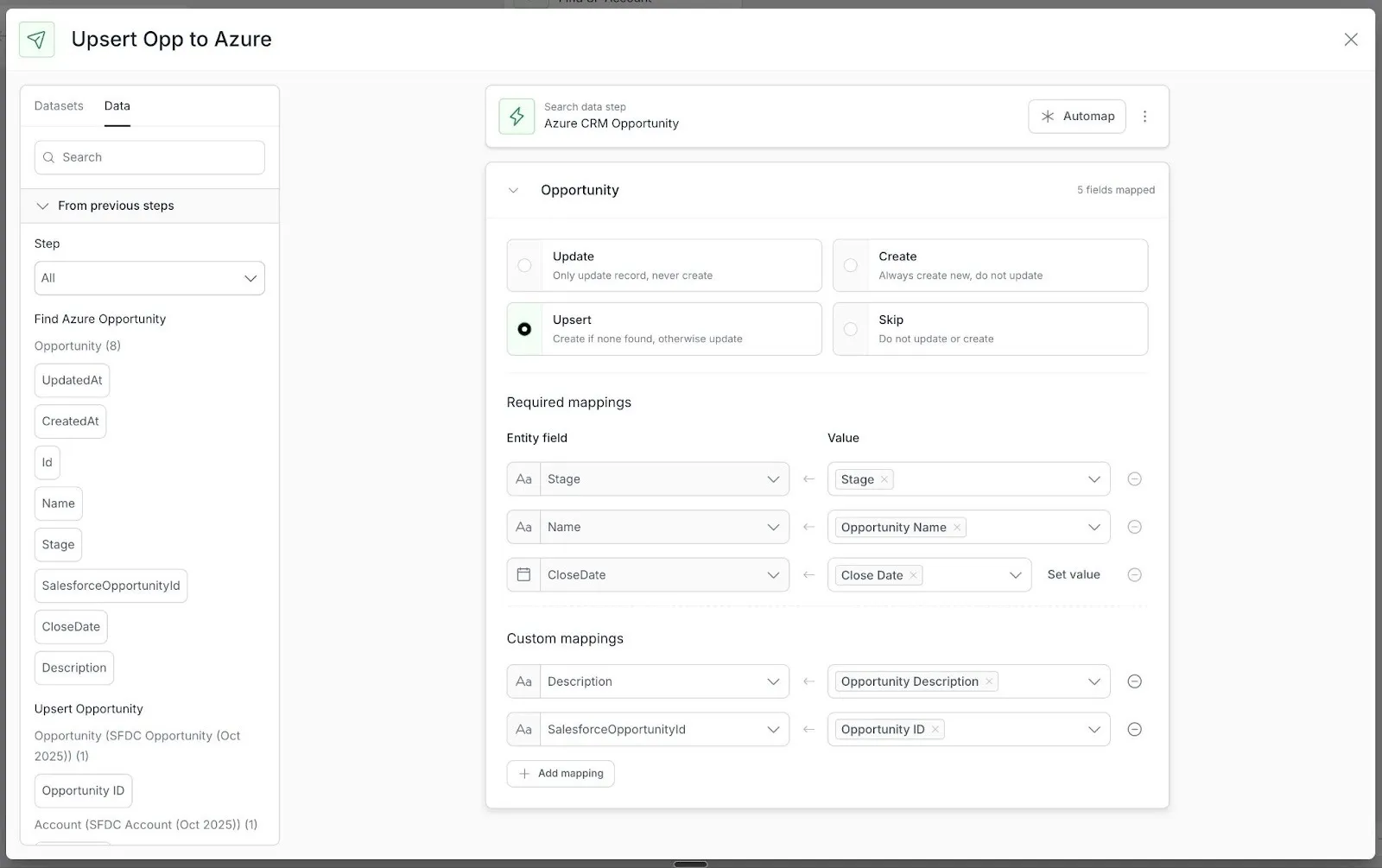
The Deliver Data step lets you send data to any connected Dataset as part of your workflow. Need to update a record in one system and then push a subset of that data to another? Add two Deliver Data steps. Need to route different fields to different destinations? Configure each step with its own field mapping. The workflow handles it automatically, every time it runs.
By default, when you add a Deliver Data step, it automatically maps fields back to the original data source. This means the most common use case - updating the record you started with - works out of the box with automatic configuration. From there, you can add additional Deliver Data steps to push data wherever else it needs to go.
When creating new records, Streamline automatically handles the technical details that usually trip up workflow builders. For transactional data sources, your CRMs, databases, and business systems, foreign keys and record identifiers are managed automatically. You focus on the workflow logic, not the database plumbing. Warehouse-style destinations like Snowflake may require some additional configuration to define how new records are keyed.
Why this matters for your data management processes
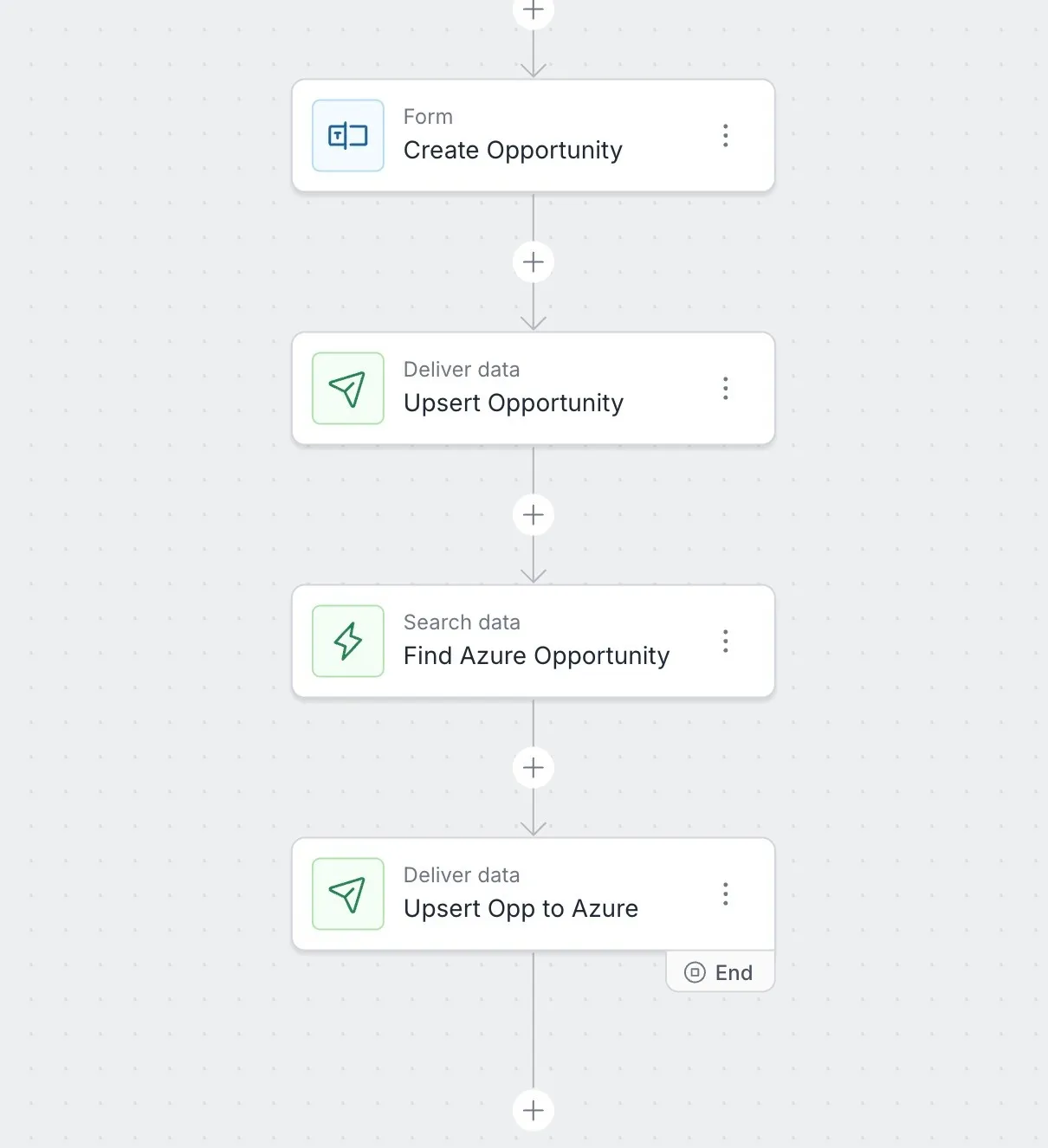
The Deliver Data step unlocks workflows that were previously impossible to build without custom code or manual intervention. Your workflows can now be truly end-to-end: pull data in, process it, and push it out to every system that needs it - all in one automated flow.
How Deliver Data works
Adding a Deliver Data step is straightforward:
1. Open your workflow and add a new step
2. Select "Deliver Data" from the step types
3. Choose your destination from your connected Datasets
4. Map the fields you want to send to their destination columns
5. Save and test
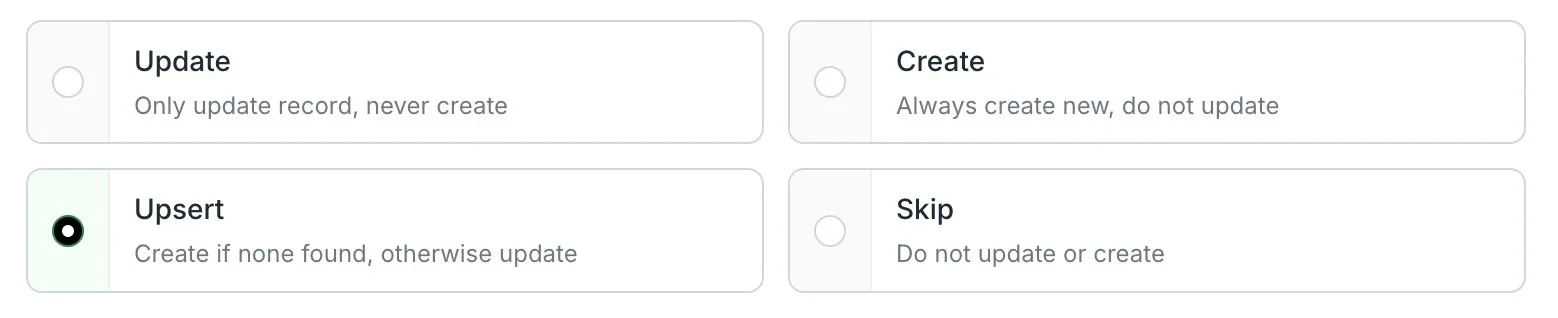
The step supports UPSERT logic where the destination system allows it - meaning Streamline can intelligently update existing records or create new ones as needed. This is especially powerful for scenarios like:
- Syncing data across CRM instances: When a contact is updated in your primary Salesforce org, automatically mirror that change to a secondary instance, or create the contact there if it doesn't exist yet. No need to check first; Streamline handles the logic.
- Student enrollment workflows: As students move through enrollment, their records may need to be created or updated across your SIS, LMS, and financial systems. UPSERT ensures each system stays current without duplicate records piling up, or manual/separate synchronization efforts and processes.
- Maintaining backup or mirror systems: Keep a secondary database in sync with your primary system in real time. Whether the record is new or existing, Streamline writes it to the right place.
A few things to know
The Deliver Data step writes data to connected Datasets - so the destination system needs to be set up in your Data Fabric with write permissions.
And, a few data sources do not support write operations, and some support updates but not new record creation. Check the documentation for each data source to understand its capabilities in Intellistack Streamline.
Get started today
The Deliver Data step is available now to Streamline customers. Open the workflow builder, add the step, and start building workflows that go all the way from data search to data delivery - no manual intervention required.
Ready to dive in? Check out our step-by-step guide: How to Use the Deliver Data Step in Your Workflow